


How to free up a large sum of data (20GB for me) on your storage drive – the HDD MEMORY CACHE FILE!
by Gaveroid on Mar.11, 2014, under PC
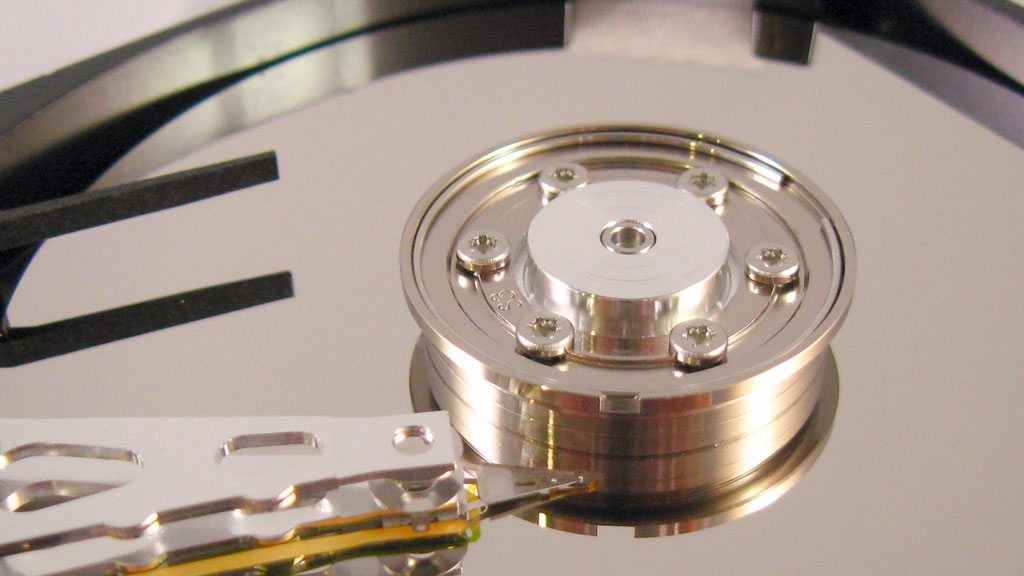 Like I said in my post about Far Cry 3 leaving 9GB of useless install data if you bought it through the GameStop Downloader, I’m in a fight for space. A few months ago, I found a way to save a lot of space on your drive (about 20GB in my case), and I will tell you how. Note that I only recommend doing such a thing if you have at least 12-16GB of ram. You could probably do with about 8GB for this, but more than that will help you with the minor drawback (and, yes, there are some). If you have under 6-8GB, I wouldn’t recommend doing this. 6-7GB is still pushing it. If you have under 8GB, only do this if you are really desperate for space.
Windows has a memory paging file (basically virtual RAM files stored on your HDD instead of on RAM sticks when your RAM gets full up), and that file is usually huge – in my case (on a 750GB hard drive) about 20GB. The drawback is that this may slightly decrease performance and loading time, which is why you need quite a bit of RAM (or your computer could crash due to not enough memory). Due to this, I am telling you to only do this at your own risk – I am not responsible for any damage this may cause to your computer, and nobody at Gaveroid.com is responsible either. This task is absolutely not for the computer illiterate. I explain later in the article how to check how much RAM you have; so, don’t fret if you can’t find it.
I am doing this on Windows 7 Home Premium, so your mileage may vary. First, go to the Control Panel, and then System. You can check out the specifications of your system here (such as how much RAM you have). Click on Advanced System Settings on the left hand side of the page. Click Settings under Performance. Go to the Advanced tab, and then lcick Change under virtual memory. It will tell you how large the paging file is (in my case, it’s 2048MB after the change). There should be a selection of drives; click your main programs drive (or any one that you put your data on). If you pick the wrong drive, problems could occur, so, be careful! Then, under that, there should be a Custom Size option. Click the button to the left of it. It should say initial size and maximum size. Depending on how much RAM you have is how much you should lower it. Don’t make it too low, but find out a comfy spot for you. I have it set to an initial size of 2048MB (2GB), and a maximum size of 4096MB (4GB). I have 16GB of physical RAM, so I can put up with this. If you have 8GB, you may want to put it a little higher. Like I said earlier, if you have anything under 6-8GB, I would not recommend doing this. Don’t put both values as the same, as you want to give your computer some breathing room in case it does need to use this memory. Click set, and click OK.
Now, you’re all set! Thanks for reading, and have a great day. Pass this onto your friends; maybe it will help them! Sometimes, you just don’t have the option to upgrade, so you must scrounge for ways to save up space. If this article gets a lot of hits, I might make a video tutorial – it’s easier to do things like this with a visual aid. If you have any questions, feel free to comment down below. Stay posted here at Gaveroid.com for new posts about the latest and greatest tech and gaming news!
FOUR LOCATIONS on JC2MP SCAVENGER HUNT during FRIDAY night’s LIVESTREAM!
by Gaveroid on Mar.10, 2014, under Games, General, PC, Twitch
 As you may know, we are holding a Scavenger Hunt here on our Just Cause 2 Multiplayer server. You can find out more about the hunt here. The first person who finds the hidden object and follows the instructions will receive a copy of The Elder Scrolls V: Skyrim on Steam for the PC.
On Friday night, we will be hosting a special livestream event at twitch.tv/gaveroid starting at 8pm. During that time (from 8pm to midnight), there will be not just one hidden object, but FOUR, to give you guys a higher chance of getting a copy of Skyrim!
Let me note that although we will be adding three more locations during this timeframe, we will still only give away a single copy of Skyrim. The first person to find any one of these will get the game.
Until then, keep on hunting on our Just Cause 2 Multiplayer server! Any comments can be either posted down below or sent to us in our contact box up above. Don’t forget, we have a new post coming up tomorrow about a way to save a large sum of space on your computer’s storage drive. I’ll see you then!
– Gavin, a.k.a. Gaveroid
Far Cry 3 leaves behind 9GB after GameStop Downloader install
by Gaveroid on Mar.09, 2014, under Games, General, PC
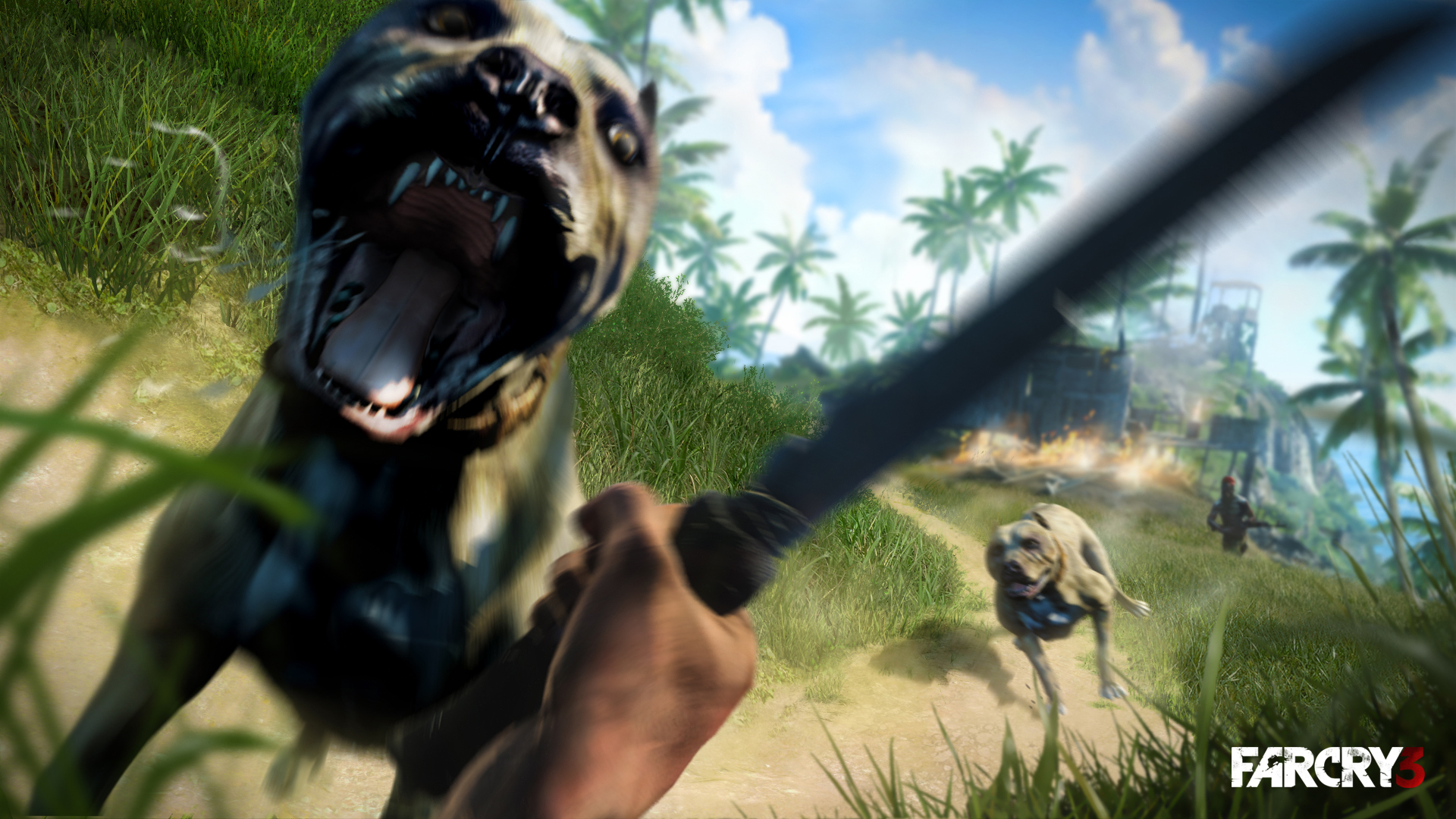 If you’re like me and strolled down to a local GameStop to go purchase Far Cry 3 about a year ago, you probably got it through the GameStop Downloader program. Here’s a little trick; the game functions without it, and it leaves behind 9GB of install data that is unneeded to play the game. Now, I did this through the Digital Deluxe edition, so I’m not sure how this goes down in the normal version.
When you install it, it will do it’s thing, and verify through UPlay. However, if you’ve noticed, you don’t need it to play after it’s been validated in UPlay – don’t even notice it’s there. You can pretty much uninstall GameStop’s app at this point (but if you’re like me, you may have crumbled and gotten their Pro Rewards subscription as it comes with GameInformer, you’ll probably need it for more GameStop PC purchases you may make in the future), but it’s not really a bother.
If you navigate into your Ubisoft directory under Program Files, you will find a Far Cry 3 directory and (in my case) a Far Cry 3 Digital Deluxe directory (not sure what it’s called for non-DD owners). The latter should be 9.05GB of data. It should have an Install folder in it, riddled with CAB files. Looks to me like they just beamed over the data straight from the CD! You can delete this, burn it to a disc, move it to a external hard drive (like I did), whatever. I’m in a fight for disc space on my M14xR2 laptop (as with laptops it’s hard to find a decent performance drive over 750GB, not to mention I’d have to upgrade my drive I backup to), so this helped me quite a bit.
I have another way to save disc space coming up soon, so stay tuned here at Gaveroid.com for the next post!
-
Hi! Welcome to Gaveroid!
A geek with a dog and a blog
Thanks for dropping by! Please feel free to look around.
Stay updated by subscribing to our RSS feed.
Gaveroid on Instagram

discord.gaveroid.com









You must be logged in to post a comment.